How to Order PCBs From JLCPCB: A Step by Step Beginner's Guide (2026)
You finished your board design. Congrats. Now you open the order page and get hit with via covering, surface finish, CPL files, and a parts shortage warning. For a lot of first-timers, this is where the project stalls.
This guide walks through a real JLCPCB order from start to cart, with screenshots, using a small 555 LED blinker board. It covers every option you'll see, which ones you can safely ignore, and the gotchas that cost me time (and money) on real orders.
Full disclosure: I build Tovan, an AI hardware design tool. This guide is about ordering from JLCPCB directly, and everything here works no matter how you designed your board.
Quick version:
Upload your Gerber .zip on the JLCPCB quote page
Leave most board options on their defaults
Turn on PCB Assembly if you want parts soldered on
Upload your BOM and CPL files
Fix any part shortages and check part placement
Pick a product description, save to cart, and check out
Our example order came to $32.92 for 5 assembled boards, plus about $28 for shipping to the US.
What you need before you start
Gerber files, zipped. These are the manufacturing files for the board itself (copper layers, solder mask, silkscreen, drill holes). JLCPCB only accepts .zip or .rar.
A BOM (bill of materials). A spreadsheet listing every part on the board. Only needed for assembly.
A CPL file (component placement list). Sometimes called a pick and place file. It tells the machine where each part goes and how it's rotated. Only needed for assembly.
A JLCPCB account. You can get a board quote without one, but you'll need to sign in to add assembly and check out.
If you design in KiCad, you can export all three files from the Fabrication Outputs menu. Community plugins can also export files already formatted for JLCPCB. EasyEDA can export them for you directly.
Tip: Check the top of the page for holiday notices before ordering. When I placed this order, JLCPCB's banner warned that its factories would be closed for several days around national holidays and suggested ordering 3 to 5 days early. It's easy to lose a week if you miss it.
Step 1: Upload your Gerber files
Go to the JLCPCB quote page and click Add gerber file. Select your zipped Gerbers.
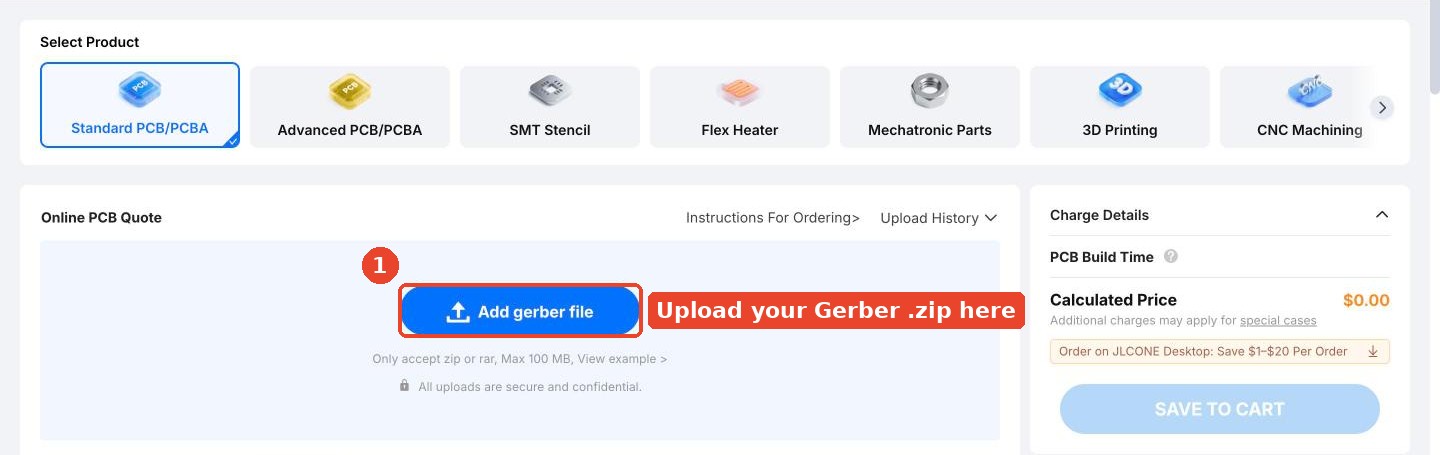
After a few seconds, JLCPCB reads your files and shows a preview of the top and bottom of your board. It automatically detects the number of layers and the board size, and the price updates live on the right.
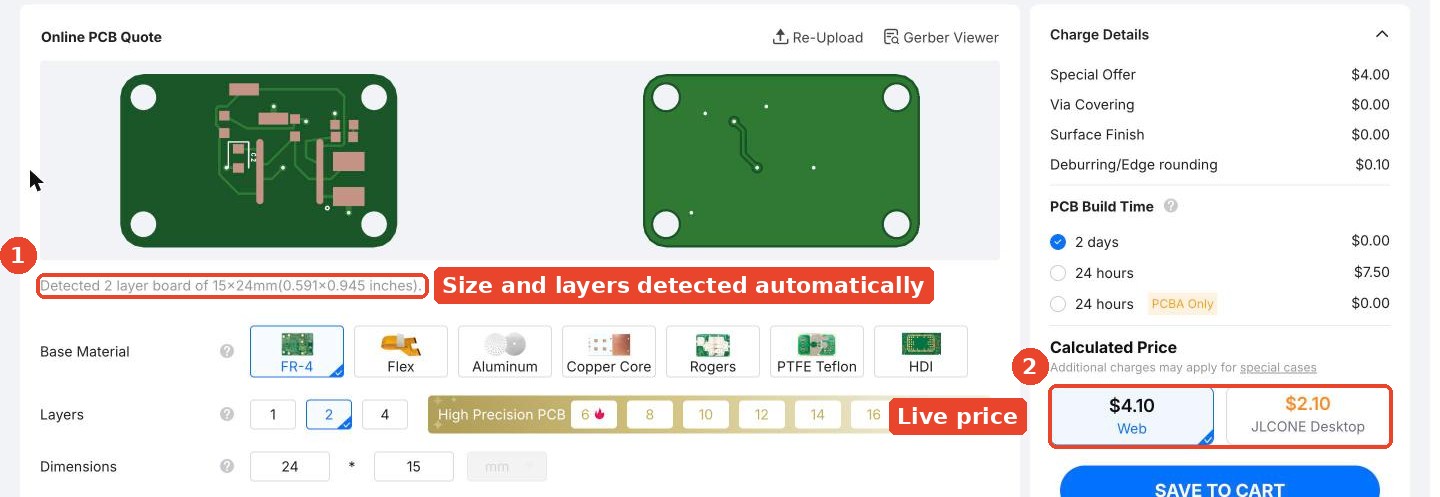
Check the preview. If your board looks wrong here (missing outline, strange shapes, wrong size), stop and fix your export before going further. Our 15×24mm two-layer board came in at $4.10 for 5 boards.
Step 2: Choose your basic board options
JLCPCB fills most of these in for you from your Gerbers. Here's what each option actually is, and what to pick.
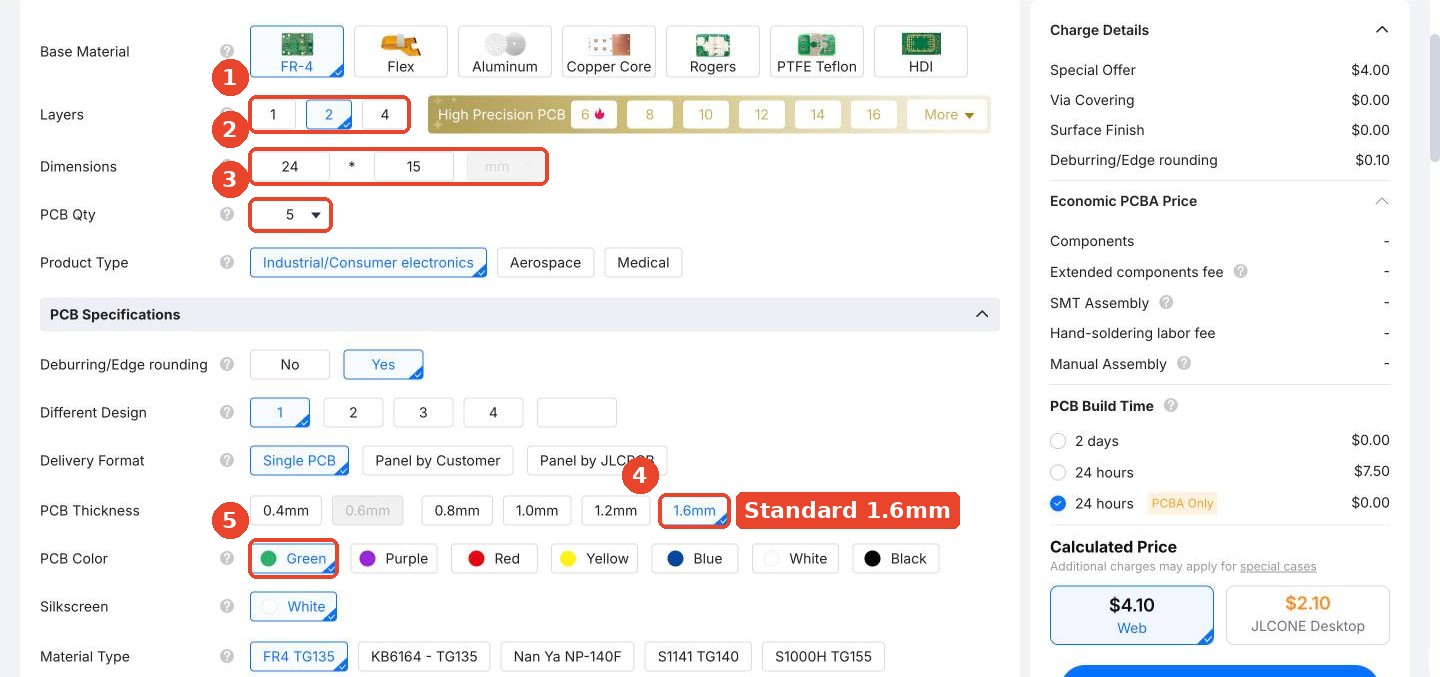
Layers. How many layers of copper are stacked inside the board. A 2 layer board has copper on the top and bottom; a 4 layer board adds two hidden layers in the middle for more routing room and cleaner power. This is read from your files, so it should already match your design. More layers cost more.
Dimensions. The outline size of your board in millimeters, read from your Edge Cuts layer. Check it against your design. If it's way off, your board outline probably didn't export correctly.
PCB Qty. How many boards you get. 5 is the minimum and the cheapest place to start. Larger quantities cost more in total but much less per board.
PCB Thickness. How thick the board is. 1.6mm is the industry standard, feels sturdy, and fits most connectors and enclosure slots. Thinner boards (0.8mm or 1.0mm) flex more and are used when space or weight matters.
PCB Color. The color of the solder mask, the coating over the copper that leaves only the pads exposed. Green is the default, cheapest, and usually fastest. Other colors can add cost or build time, and black and white can be harder to inspect.
The rest of this section you can usually leave alone, but here's what they are:
Base Material. What the board itself is made of. FR-4 is fiberglass, the standard for almost everything. Aluminum and copper core boards pull heat away from parts (used for high power LEDs), and flex boards bend. Unless you designed for one of those, use FR-4.
Product Type. What kind of device the board goes into. It affects which quality process JLCPCB applies. Industrial/Consumer electronics is right for most projects. Aerospace and Medical get stricter handling and cost more.
Different Design. How many different board designs are inside your file. Leave it at 1 unless you intentionally combined multiple designs into a single panel.
Delivery Format. How your boards arrive. Single PCB means individual boards, which is what you want for prototypes. The panel options ship your boards grouped in a larger sheet, which machines prefer for assembly at volume.
Deburring/Edge rounding. Smooths the cut edges of the board so there are no rough fiberglass burrs. It defaulted to Yes on our order and added $0.10. Fine either way.
Silkscreen. The printed text and outlines on the board (part labels, logos, polarity marks). White on green is standard.
Material Type. The specific fiberglass grade, mostly about heat tolerance. The default is fine unless you have a reason.
Step 3: Leave the high-spec options on defaults
This is the section that scares people. For a typical first board, you can leave nearly all of it alone.
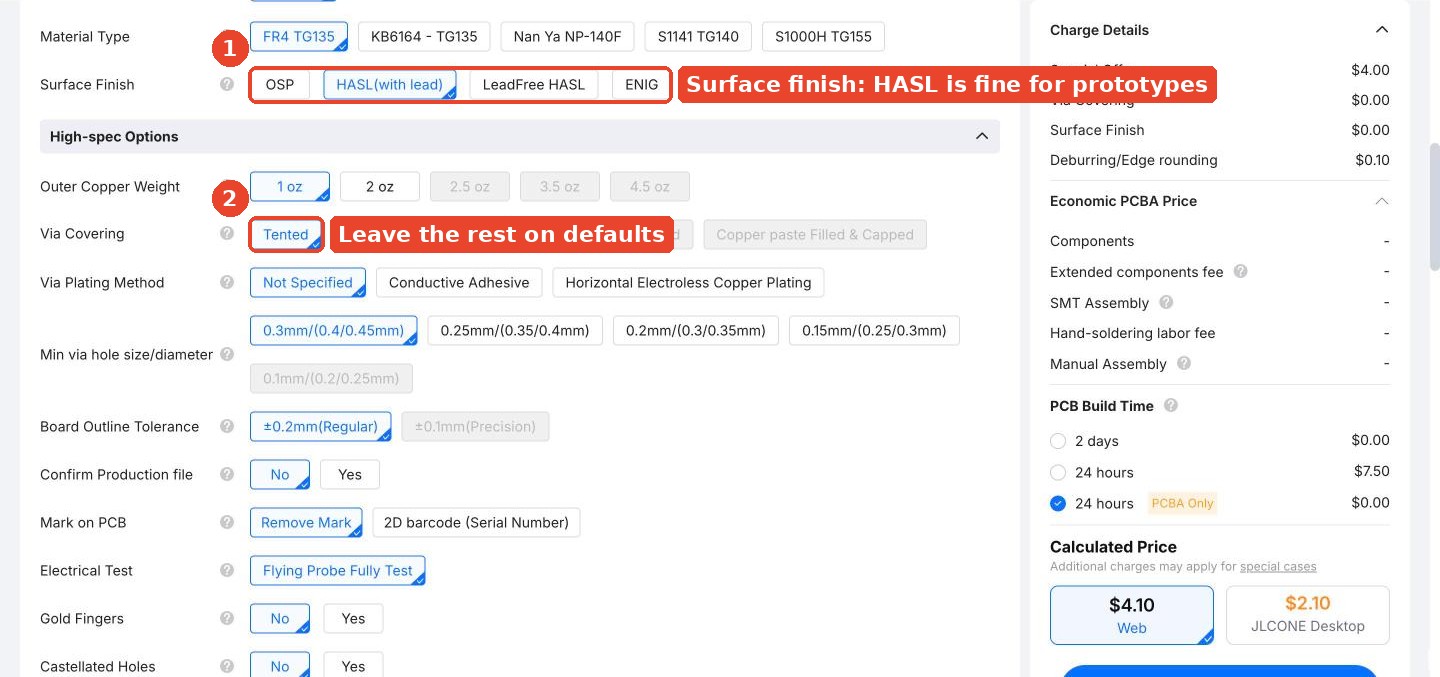
Surface Finish: The coating on exposed copper pads.
HASL (with lead) is the default and cheapest. Fine for prototypes.
LeadFree HASL is the pick if your device will be sold or you want to avoid lead.
ENIG is flatter and gold colored. Useful for very fine pitch chips, but it costs more.
Outer Copper Weight. How thick the copper is, in ounces per square foot. 1 oz is standard and handles normal currents. 2 oz is for boards carrying a lot of current.
Via Covering. How the small plated holes that connect layers are finished. Tented means covered with solder mask so solder can't wick into them, which is the sensible default.
Min via hole size. The smallest hole your design uses. Detected from your files. Smaller holes cost more.
Board Outline Tolerance. How precisely the board is cut. The regular option is fine unless your board slides into a tight enclosure slot.
Confirm Production file. JLCPCB sends you their adjusted files to approve before building. It adds a day, but it can catch problems.
Mark on PCB. JLCPCB prints a small order number on every board. Remove Mark hides it in a less visible spot. Leave it as is.
Electrical Test. Machine testing for shorts and broken connections. Leave it on. It's included and it catches bad boards.
Gold Fingers, Castellated Holes, Edge Plating, Blind Slots, UL Marking. Special manufacturing features, like the gold edge connectors on a memory stick or the plated half-holes on a solderable module. If your design needs one, you already know. Otherwise leave them all on No.
Step 4: Turn on PCB assembly
If you want JLCPCB to solder the parts on for you, scroll down and flip the PCB Assembly toggle.
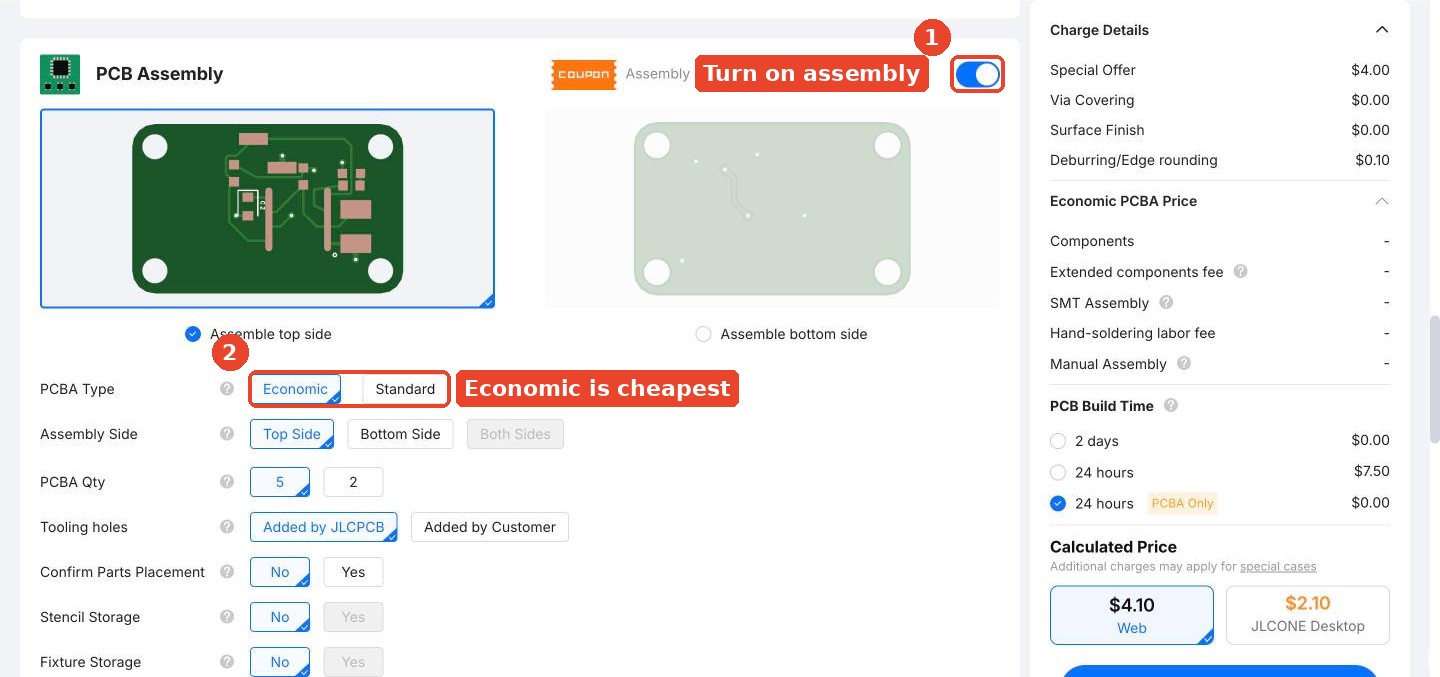
The assembly toggle: Turns on assembly options and adds the BOM and CPL steps.
PCBA Type: Economic is the cheapest option and fine for most simple prototypes. Standard supports more complex jobs, like more part types and assembly on both sides.
Then the rest of the assembly settings:
Assembly Side: Top Side for most boards, since that's usually where all the parts are.
PCBA Qty: How many of your boards get assembled. You can assemble fewer than you ordered, which saves money on parts.
Tooling holes: Small holes the assembly machine uses to hold and align your board. Let JLCPCB add them.
Confirm Parts Placement: Optional. JLCPCB will check placement with you before building, which can catch rotation mistakes.
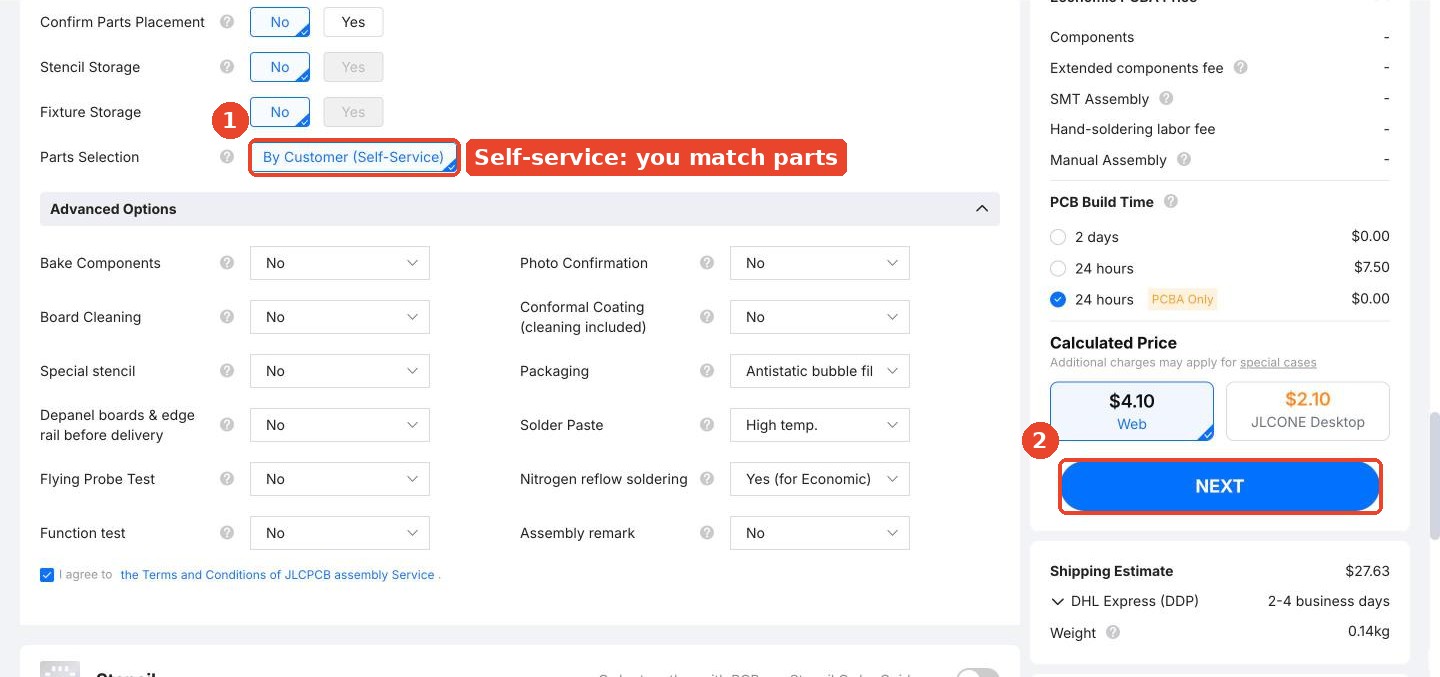
Parts Selection: By Customer (Self-Service) means you match parts yourself in the next steps. That's the normal path.
The advanced options (baking, cleaning, conformal coating, function test) can stay on their defaults for a prototype. Then click NEXT.
Step 5: Review your PCB
JLCPCB shows a large preview of your board along with your assembly settings.
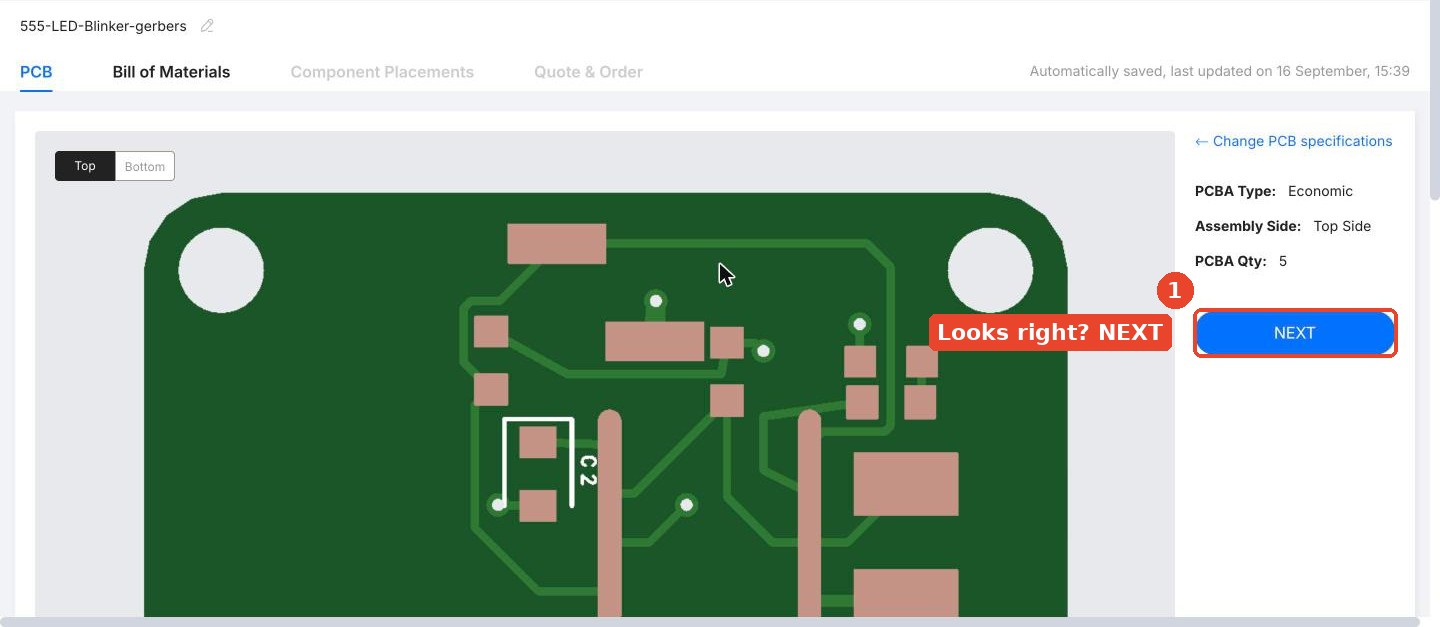
Give it a quick look, then click NEXT.
Step 6: Upload your BOM and CPL files
Now upload the two assembly files.
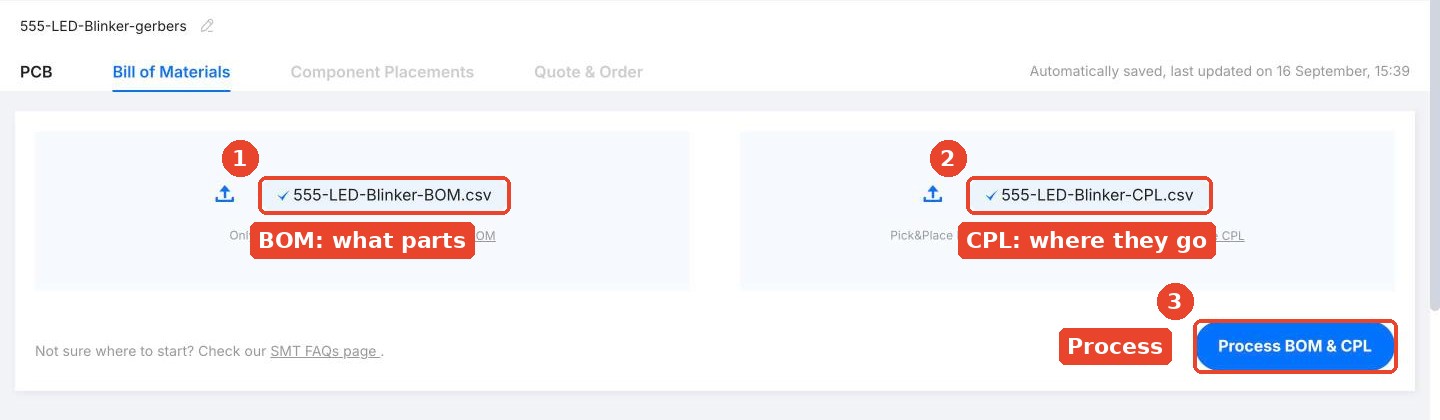
BOM: What parts go on the board.
CPL: Where each part goes and how it's rotated.
Click Process BOM & CPL.
JLCPCB accepts .xls, .xlsx, and .csv files. If yours get rejected, compare your column names to the sample files linked right under the upload buttons.
Step 7: Match your parts (and fix shortages)
This is the step where most beginner orders go sideways. JLCPCB tries to match every line of your BOM to a real part in its parts library and shows you what it found.
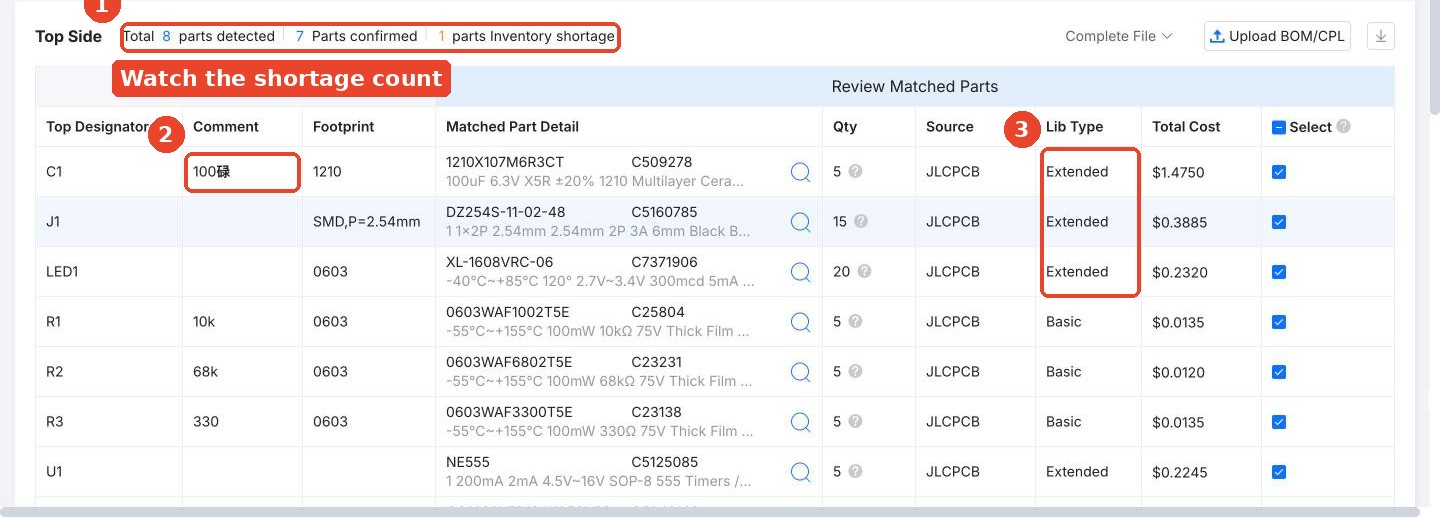
The summary line. Ours said 8 parts detected, 7 confirmed, and 1 part with an inventory shortage. Always check this first.
Garbled text. Our BOM said "100µ" for the capacitor, but it showed up as "100碌". The file wasn't saved with the character encoding JLCPCB expected. It only affected the comment here, but garbled part values can cause bad matches. Stick to plain text like "100uF" in your BOM.
Lib Type: Basic vs Extended. This one matters for cost.
Basic parts are common parts JLCPCB keeps loaded on its machines. No extra fee.
Extended parts have to be loaded by hand for your job, so each unique extended part adds a fee. On our order, 5 extended parts added $15.35, more than three times what the boards cost.
Fixing a part shortage
Scroll down and you'll see which part is the problem.
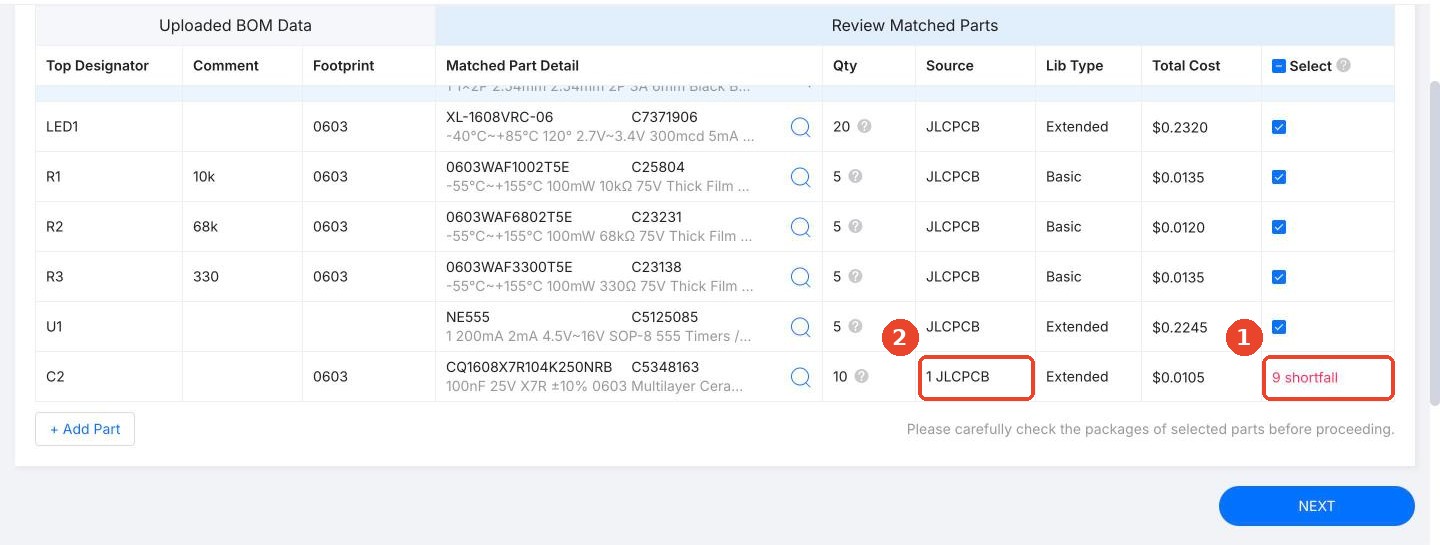
Shortfall: Our C2 capacitor needed 10 pieces but was short by 9.
Source: JLCPCB only had 1 in stock.
Why 10 when we're assembling only 5 boards? JLCPCB orders extra parts to cover losses during assembly, and some parts have minimum quantities. You'll see that on other rows too.
To fix it, click the magnifying glass on that row to search for a replacement.
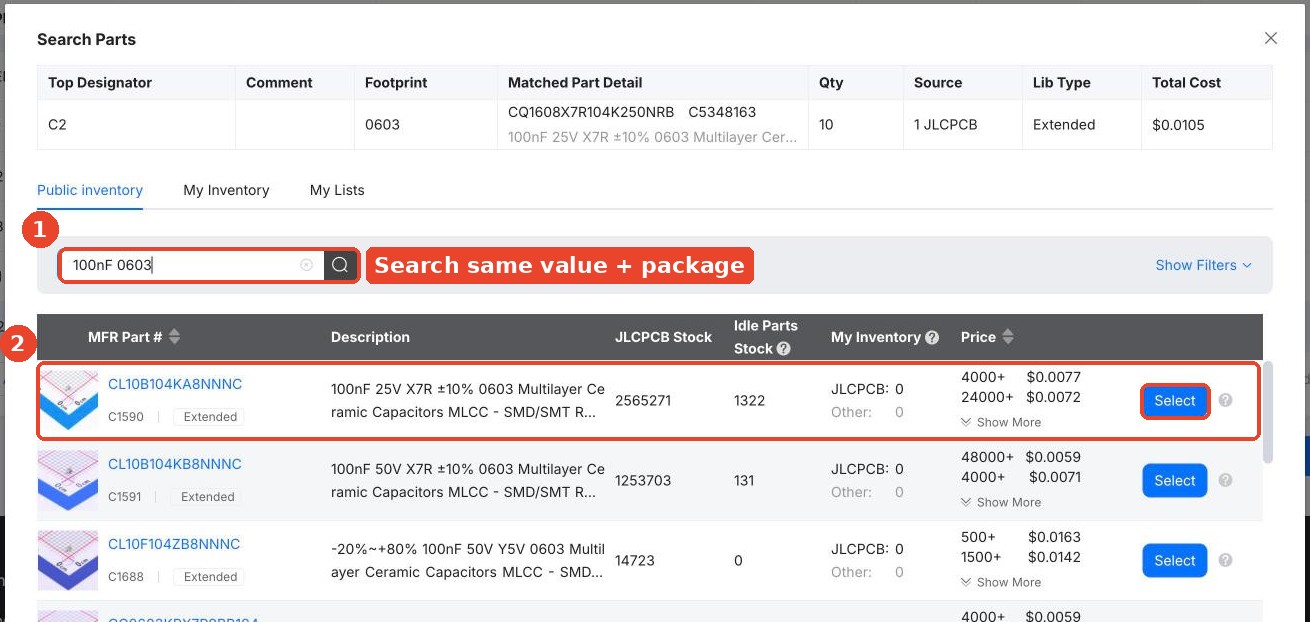
Search by value and package. The default search didn't find anything useful on our order, so I searched for "100nF 0603" instead.
Pick a match with plenty of stock. The top result had the same value, voltage rating, dielectric (X7R), tolerance, and 0603 size, with over 2.5 million in stock. Click Select.
Be careful here. A replacement needs to match the value, the package size, and ratings like voltage at least as good as the original. Swapping in the wrong package means it won't fit the pads on your board. This is where reading datasheets comes in, and it's a pain. For simple passive parts like resistors and capacitors, matching value, package, voltage, and tolerance is usually enough.
After the swap, our summary showed all 8 parts confirmed. Click NEXT.
Step 8: Check component placement
JLCPCB now shows a 3D preview of every part sitting on your board.
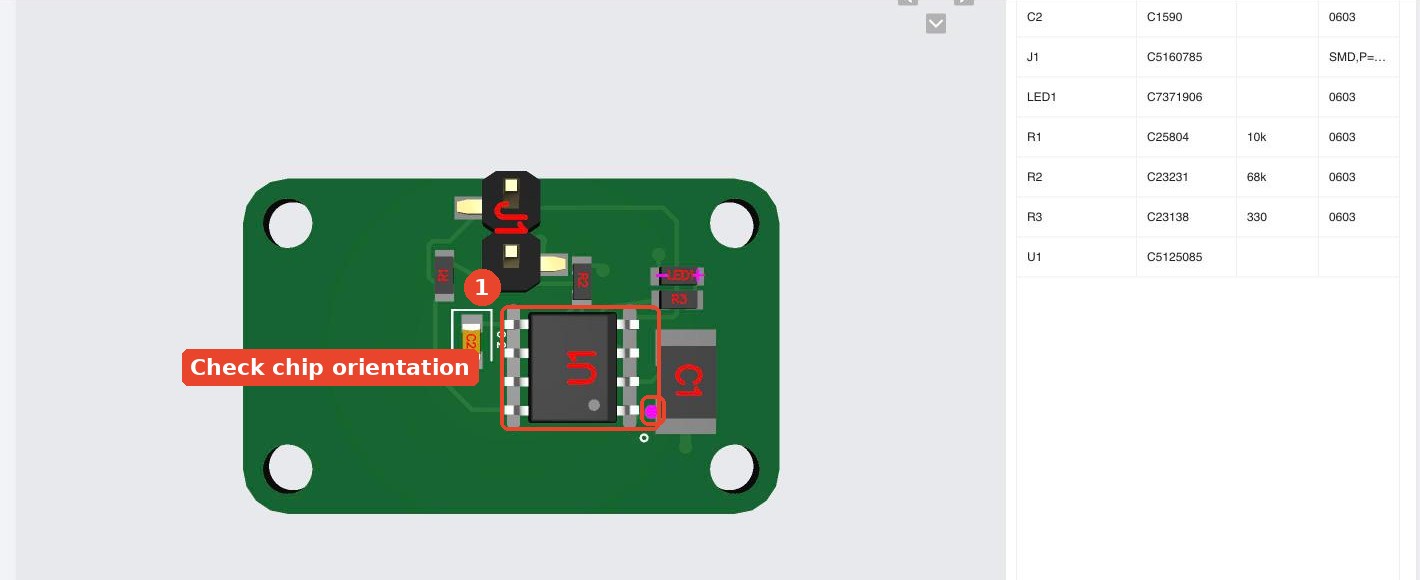
Check orientation on anything with a direction. Chips, diodes, LEDs, and polarized capacitors can all go on backwards. Look for the pin 1 marker (the small dot) and make sure it lines up with pin 1 on your board. A rotated chip is one of the most common and most expensive assembly mistakes.
If something is rotated wrong, you can select it and rotate it right here. When everything looks right, click NEXT.
Step 9: Review the quote
Here's the full price breakdown.
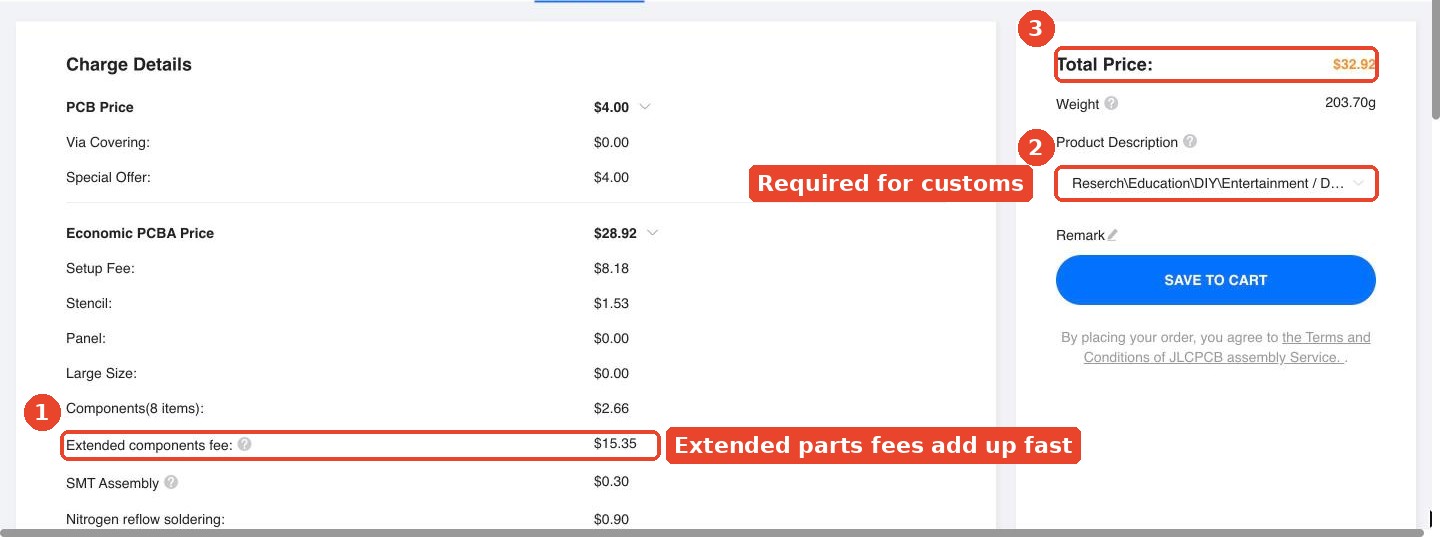
Extended components fee: The biggest line on our order at $15.35.
Product Description: Required. It's used for customs, and each option comes with an HS code. For a hobby or prototype board, the Research\Education\DIY\Entertainment category with DIY usually fits.
Total Price: $32.92 for our 5 assembled boards, before shipping.
Click SAVE TO CART.
Step 10: Check out
Your board and assembly show up as items in your cart.
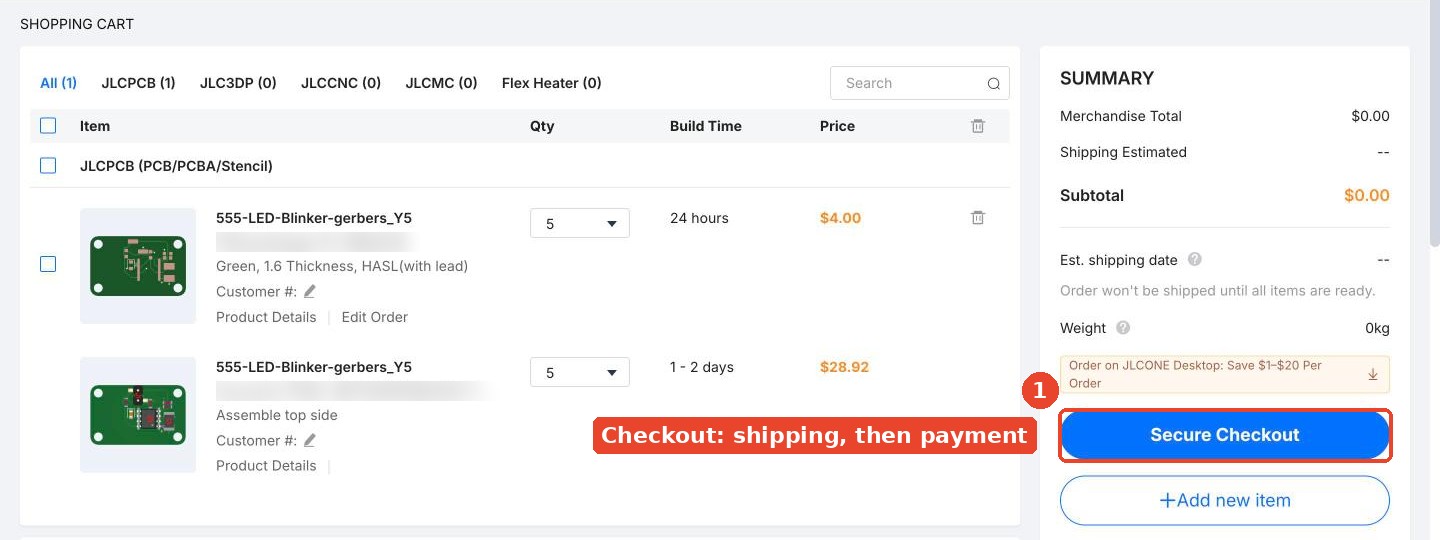
Select your items and click Secure Checkout. From there you'll pick a shipping method, confirm your address, and pay.
A few things to know at checkout:
Shipping: Our estimate was $27.63 for DHL Express, 2 to 4 business days to the US.
Tariffs and duties: US orders ship DDP (delivered duty paid). Under JLCPCB's US tariff policy, import fees are collected upfront, so the checkout total can be noticeably higher than the quote.
File review: JLCPCB reviews your files before production and will contact you if they find a problem.
What our order actually cost
Here's the full breakdown for 5 assembled 555 LED blinker boards:
5 bare PCBs: $4.00
Assembly setup fee: $8.18 (one-time cost to set up the machines for your job)
Stencil: $1.53 (the metal sheet used to apply solder paste to your pads)
Components (8 part types): $2.66
Extended components fee: $15.35
SMT assembly: $0.30
Nitrogen reflow soldering: $0.90 (soldering in a nitrogen atmosphere for cleaner joints, included with Economic assembly)
Total before shipping: $32.92
Shipping estimate (DHL Express to the US): about $27.63, plus any import duties collected at checkout
Prices from a real quote on September 16, 2026. Yours will vary with board size, parts, and shipping destination.
Notice that the parts themselves were only $2.66, while the extended parts fee was $15.35. Designing with basic parts where you can is one of the easiest ways to cut assembly costs.
Common JLCPCB ordering mistakes
Uploading Gerbers that aren't zipped. JLCPCB only accepts .zip or .rar.
Ignoring the shortage count. Part shortages can hold up your order or leave parts off your boards.
Swapping in a replacement with the wrong package. It won't fit the pads.
Not checking rotation. Backwards chips and LEDs are a classic first order mistake.
Using lots of extended parts. Each unique one adds a fee.
Forgetting shipping and duties. They can cost as much as the boards themselves on small orders.
Missing holiday closures. Check the banner before you order.
If you'd rather skip all of this
Ordering boards yourself gets a lot easier after your first couple of orders. But if you'd rather not deal with file exports, part matching, and shortages at all, Tovan handles it for you. You describe your board in plain English, Tovan picks in-stock parts, designs the board and a custom-fit enclosure, shows you both in 3D, and you order everything directly through Tovan. It's free to try.
For a full comparison of your options, see How to Make a Custom Circuit Board Without Being an Engineer, or check out how much a hardware prototype really costs.
FAQ
How much does it cost to order PCBs from JLCPCB?
Simple two-layer boards can cost a few dollars for 5 pieces. Our real order of 5 small assembled boards came to $32.92 before shipping, with about $28 for DHL Express shipping to the US.
What files do I need to order from JLCPCB?
For bare boards, you need your Gerber files in a .zip or .rar. For assembly, you also need a BOM (bill of materials) and a CPL (component placement list) file in .xls, .xlsx, or .csv format.
What is the difference between basic and extended parts at JLCPCB?
Basic parts are common components JLCPCB keeps loaded on its assembly machines, so they carry no extra fee. Extended parts must be loaded for your job, so each unique extended part adds a fee. On our order, 5 extended parts added $15.35.
What should I do if a part is out of stock on JLCPCB?
Click the search icon next to the part in the BOM step and look for a replacement with the same value, package size, and equal or better ratings, like voltage and tolerance. Pick one with plenty of stock.
What is a CPL file?
A CPL (component placement list), also called a pick and place file, lists the position, side, and rotation of every part on your board so the assembly machine knows where to place each one.
How long does JLCPCB take to make and ship boards?
On our order, PCB production was 24 hours and assembly was 1 to 2 days, with DHL Express shipping estimated at 2 to 4 business days to the US. Holidays and file review can add time.
Which surface finish should I choose on JLCPCB?
HASL with lead is the cheapest and fine for most prototypes. Choose lead-free HASL if you want to avoid lead or plan to sell your device, and ENIG for very fine pitch parts that need flatter pads.
Your first JLCPCB order is the hardest one. Once you've been through it, the next board takes minutes. Upload, check your parts, check your rotations, and go get your boards.
0 comments